A Complete Step-by-Step Guide
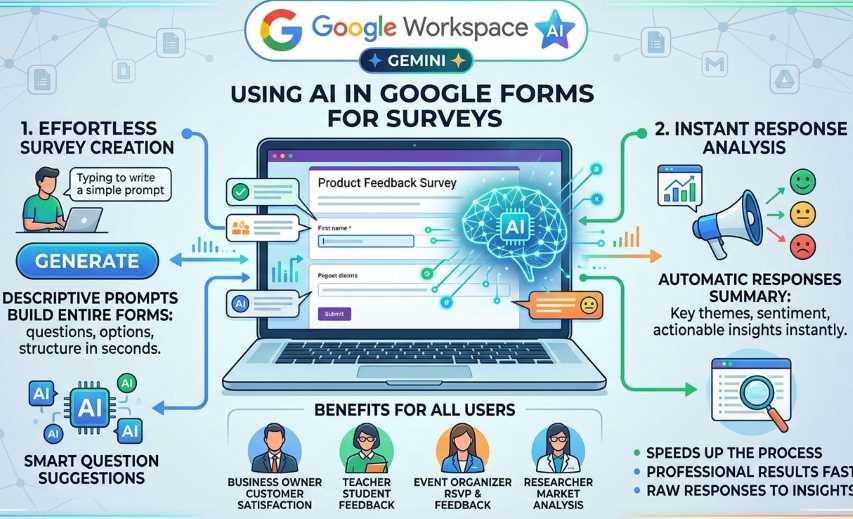
Google Forms has become even more powerful with the integration of Gemini Artificial Intelligence (Google’s advanced artificial intelligence model). Whether you are a business owner running customer satisfaction surveys, a teacher gathering student feedback, an event organizer collecting responses, or a researcher conducting market analysis, Gemini can dramatically speed up the process. It helps you generate entire surveys from simple prompts, suggest smart questions, and automatically summarize and analyze responses—all without leaving Google Forms.
This guide walks you through everything in clear, detailed steps with real-world examples. You will learn how to create professional surveys faster and turn raw responses into actionable insights instantly.
Prerequisites
Before you begin:
You need a Google account with Gemini Artificial Intelligence access enabled (available in Google Workspace plans with Gemini or via Google Workspace Labs and Experiments for personal Gmail accounts).
The features work best on a desktop computer (mobile support is limited).
Go to forms.google.com and ensure your account language.
Note: Some features are rolling out gradually and may require administrator approval in Workspace environments.
Part 1: Creating a Survey from Scratch Using Gemini Artificial Intelligence
Gemini’s “Help me create a form” feature lets you describe your survey in plain language, and it builds a complete draft—including questions, answer choices, and structure—in seconds.
Step-by-Step Instructions
Open your browser and go to forms.google.com. Click the Blank button to start a new form (or go directly to a new form).
A Gemini prompt window will automatically appear. If not, click the Help me create a form button in the toolbar at the top.
Type a clear, detailed prompt describing the survey you want.
Professional tip: Be specific—include the topic, number of questions, target audience, question types (multiple choice, rating scales, short answer, and so on), and any special requirements.
Click Create. Gemini will generate a full form draft.
Review the draft:
If you like it, click Create form at the bottom.
To improve it, edit the prompt at the top of the draft, then click Recreate (note: you cannot return to previous versions).
Customize the form manually if needed (add your logo, change colors via the palette icon, add sections, or adjust question settings).
Click the Send button at the top right to share the survey via link, email, or embed code.
Example Prompts for Real Surveys
Here are ready-to-use prompts you can copy and paste:
Example 1: Customer Satisfaction Survey
“Create an eight-question customer satisfaction survey for an online clothing store. Include a mix of multiple choice, rating scales (one to five stars), and one open-ended paragraph question. Ask about product quality, delivery speed, website ease of use, and overall experience. Target recent buyers.”
Example 2: Employee Engagement Survey
“Design a ten-question employee feedback survey for a remote technology team. Include Likert-scale questions on work-life balance, team collaboration, and manager support. Add one short-answer question for suggestions on improving company culture.”
Example 3: Event Feedback Survey
“Create a post-event survey for a virtual marketing webinar. Collect attendee name and email, then ask about session usefulness, speaker quality, and what topics they want next time. Include multiple choice and rating questions.”
Example 4: Using Files from Google Drive
“Create a survey based on this product catalog [attach or reference a Google Document, Sheet, or Portable Document Format from Drive]. Ask potential customers about their cabinetry projects so I can recommend items from the 2025 catalogue.”
Gemini can reference your uploaded Drive files (Documents, Sheets, Slides, or Portable Document Formats) to make questions even more relevant.
Bonus: Suggest More Questions
After adding a couple of questions manually, scroll to the bottom of the form. You will often see a “Suggest questions” button powered by Gemini. Click it to get artificial intelligence-generated additions tailored to your existing form.
Part 2: Collecting Responses
Share the form link or embed it on your website.
Responses are automatically saved in the Responses tab and can be linked to a Google Sheet for deeper analysis.
You can set up email notifications for new responses.
Part 3: Analyzing Responses with Gemini Artificial Intelligence (The Magic Happens Here!)
Once you have responses (minimum three, maximum two hundred per question), Gemini automatically provides intelligent summaries for short-answer and paragraph questions.
Step-by-Step: Summarizing Responses
Open your form in Google Forms.
Click the Responses tab at the top.
Scroll to any short-answer or paragraph question. Gemini automatically generates a summary block showing:
Key themes and takeaways.
Sentiment (positive, neutral, negative).
Quantitative insights (for example, “sixty-five percent of respondents mentioned fast delivery as a highlight”).
Click Retry if you want a fresh summary.
Example Outcome:
For a customer feedback survey, Gemini might summarize:
“Most respondents praised product quality and fast shipping. Common suggestions include expanding color options. Overall sentiment is eighty-two percent positive.”
You can copy these summaries directly into reports, emails, or presentations.
Tips for Best Results
Write detailed prompts – The more specific you are, the better the form (for example, specify question types, tone, or length).
Review and edit – Artificial intelligence is excellent but not perfect. Always double-check for accuracy and branding.
Test the form – Preview and test submissions before sharing.
Combine with Google Sheets – Link responses to Sheets for charts, filters, or further artificial intelligence analysis in Gemini for Sheets.
Privacy note – Avoid including sensitive or confidential data in prompts.
Limitations to Keep in Mind
Currently works best for single-section forms (multi-section support is still evolving).
Cannot automatically edit existing forms (it creates a new one).
Summaries are limited to between three and two hundred responses per text question.
Available primarily on desktop and in select languages.
Always review artificial intelligence output—Gemini may occasionally suggest inaccurate content.
Why This Changes Everything
Using Gemini in Google Forms saves hours of manual work. You go from idea to polished survey to insightful analysis in minutes instead of days. It is perfect for businesses, educators, nonprofits, and anyone who needs fast, high-quality feedback.
Ready to try it? Head to forms.google.com, start a blank form, and type your first prompt. You will be amazed at how quickly you can create professional surveys!
 |  |  |
 |  |  |