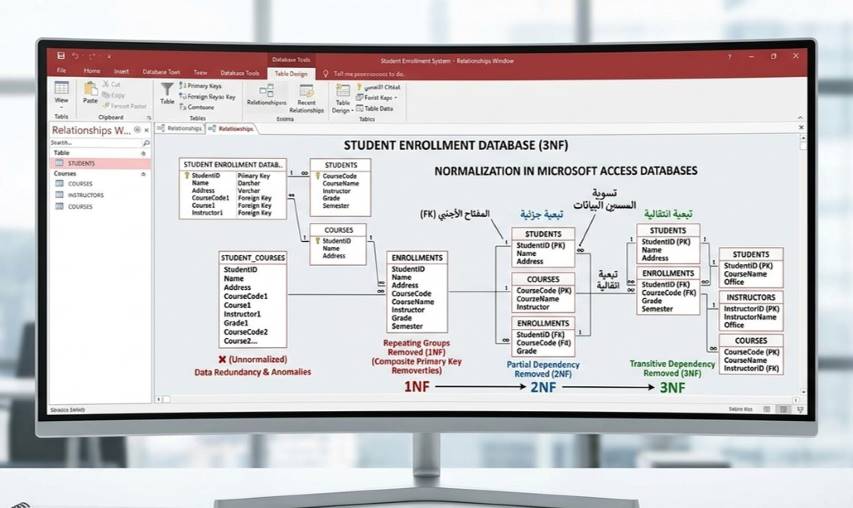
Normalization is a systematic process used in relational database design to organize data efficiently, eliminate redundancy, and ensure data integrity. In Microsoft Access (which uses the Microsoft Jet or Access Connectivity Engine database engine), normalization follows the same principles as in any relational database management system like Structured Query Language Server or MySQL. However, Access provides a user-friendly graphical interface—such as the Table Design View, Relationships window, and Query Designer—to implement normalized tables and enforce relationships manually.
The goal of normalization is to break down large, unorganized tables into smaller, related tables while following specific rules called Normal Forms (NF)
. Each normal form builds on the previous one and addresses a particular type of data anomaly (insertion, update, or deletion anomalies).
Why Normalize a Database in Microsoft Access?
Reduces data redundancy: Prevents the same information from being stored in multiple places.
Improves data integrity: Ensures updates, deletions, or insertions do not cause inconsistencies.
Simplifies maintenance: Easier to query, update, and scale the database.
Enables better relationships: Supports one-to-many and many-to-many relationships via Primary Keys and Foreign Keys.
Optimizes performance: Although over-normalization can sometimes slow queries (due to joins), it is generally recommended for most Access applications.
Note: Access does not have an automatic “Normalize” button. You design tables manually in Design View and create relationships in the Database Tools → Relationships window. Always start with an unnormalized design and progressively apply normal forms.
The Normal Forms (Step-by-Step with Examples)
We will use a practical business scenario: Managing Student Enrollments in Courses. This example starts completely unnormalized and progresses through each normal form.
Unnormalized Form (Starting Point)
Imagine a single table called StudentCourses that stores everything in one place:
| Student ID | Student Name | Student Address | Course Code | Course Name | Instructor | Grade | Semester |
|---|---|---|---|---|---|---|---|
| 101 | Alice Johnson | 123 Main St, NY | CS101 | Intro to Programming | Dr. Smith | A | Fall 2025 |
| 101 | Alice Johnson | 123 Main St, NY | MATH201 | Calculus | Prof. Brown | B | Spring 2026 |
| 102 | Bob Lee | 456 Oak Ave, CA | CS101 | Intro to Programming | Dr. Smith | A- | Fall 2025 |
Problems:
Repeating groups (multiple courses per row).
Redundant data (Student Name and Student Address repeat for each course).
Update anomalies (changing Alice’s address requires updating multiple rows).
Insertion anomalies (cannot add a new course without a student).
Deletion anomalies (deleting a student deletes course information).
First Normal Form(1NF)
Rules:
Each cell must contain a single (atomic) value.
No repeating groups or multi-value fields.
Each record must be uniquely identifiable (introduce a primary key if needed).
Every table must have a unique column or combination of columns as the Primary Key.
Step-by-Step in Microsoft Access:
Open your database → Create → Table Design.
Create a new table called Enrollments.
Define columns with atomic values only.
Set a composite Primary Key (Student ID + Course Code) to uniquely identify each enrollment.
Normalized Table (1NF):
| Student ID (Primary Key) | Student Name | Student Address | Course Code (Primary Key) | Course Name | Instructor | Grade | Semester |
|---|---|---|---|---|---|---|---|
| 101 | Alice Johnson | 123 Main St, NY | CS101 | Intro to Programming | Dr. Smith | A | Fall 2025 |
| 101 | Alice Johnson | 123 Main St, NY | MATH201 | Calculus | Prof. Brown | B | Spring 2026 |
| 102 | Bob Lee | 456 Oak Ave, CA | CS101 | Intro to Programming | Dr. Smith | A- | Fall 2025 |
Access Tip: In Design View, select both Student ID and Course Code columns, then click the Primary Key button (key icon).
Second Normal Form(2NF)
Rules (must already be in First Normal Form):
No partial dependency: Non-key attributes must depend on the entire primary key, not just part of it.
Step-by-Step in Microsoft Access:
Split the First Normal Form table into three separate tables:
Students (student-specific data).
Courses (course-specific data).
Enrollments (link between students and courses + enrollment-specific data).
Create relationships using Foreign Keys.
Resulting Tables:
Table 1: Students
| Student ID (Primary Key) | Student Name | Student Address |
|---|---|---|
| 101 | Alice Johnson | 123 Main St, NY |
| 102 | Bob Lee | 456 Oak Ave, CA |
Table 2: Courses
| Course Code (Primary Key) | Course Name | Instructor |
|---|---|---|
| CS101 | Intro to Programming | Dr. Smith |
| MATH201 | Calculus | Prof. Brown |
Table 3: Enrollments
| Student ID (Foreign Key) | Course Code (Foreign Key) | Grade | Semester |
|---|---|---|---|
| 101 | CS101 | A | Fall 2025 |
| 101 | MATH201 | B | Spring 2026 |
| 102 | CS101 | A- | Fall 2025 |
Access Implementation Steps:
Create each table in Design View.
Set primary keys as shown.
Go to Database Tools → Relationships.
Drag Student ID from Students to Student ID in Enrollments → Enforce Referential Integrity (one-to-many).
Do the same for Course Code (Courses → Enrollments).
Third Normal Form(3NF)
Rules (must already be in Second Normal Form):
No transitive dependency: Non-key attributes must depend only on the primary key, not on other non-key attributes.
Step-by-Step in Microsoft Access:
In the Courses table above, Instructor depends on Course Code, which is fine. However, if we had instructor details (such as Instructor Office), they would be transitive. To fix this, create a separate table for instructors.
Table: Instructors (New Table)
| Instructor ID (Primary Key) | Instructor Name | Office |
|---|---|---|
| 1 | Dr. Smith | Room 101 |
| 2 | Prof. Brown | Room 205 |
Updated Courses Table (Third Normal Form):
| Course Code (Primary Key) | Course Name | Instructor ID (Foreign Key) |
|---|---|---|
| CS101 | Intro to Programming | 1 |
| MATH201 | Calculus | 2 |
Boyce-Codd Normal Form (BCNF)
Rules (stricter version of Third Normal Form):
Every determinant (column that determines another) must be a candidate key.
When to apply: Rare in simple Access databases, but needed if there are overlapping candidate keys.
Fourth Normal Form(4NF) and Fifth Normal Form(5NF)
These are advanced and rarely needed for most Microsoft Access applications:
Fourth Normal Form: Eliminates multi-valued dependencies (for example, a student can have multiple skills and multiple hobbies, stored independently).
Fifth Normal Form (Project-Join Normal Form): Eliminates join dependencies (very rare).
Quick Summary Table of Normal Forms
Normal Form | Key Requirement | Problem It Solves |
|---|---|---|
1NF | Atomic values, no repeating groups | Multi-value cells |
2NF | Full functional dependency on Primary Key | Partial dependency |
3NF | No transitive dependency | Indirect dependencies |
BCNF | Every determinant is a candidate key | Overlapping keys |
4NF/5NF | No multi-valued or join dependencies | Advanced redundancy |
Best Practices for Normalization in Microsoft Access
Always start in Design View and define clear Primary Keys.
Use the Relationships window to visualize and enforce referential integrity.
Create queries (especially joins) to reconstruct the original data view for users.
Use forms and reports based on normalized queries so end-users never see the split tables.
Document your design with a data dictionary (a separate table listing every field and its purpose).
When to Denormalize Slightly:
For very small Access databases used by non-technical users.
To improve query performance on read-heavy reports (add a calculated field or duplicate a small amount of data).
Normalization in Microsoft Access turns a messy spreadsheet-like structure into a professional, scalable relational database. By following the steps above, your database will be robust, easy to maintain, and free from common data errors.
 |  |  |
 |  |  |